How to Make Obs Use Less Cpu: Ultimate Tips for Smooth Streaming
Are you tired of your computer slowing down every time you use OBS? High CPU usage can make your streaming or recording experience frustrating and laggy.
But what if you could fix this and make OBS run smoothly without killing your system’s performance? You’ll discover simple, effective ways to reduce OBS’s CPU usage. Keep reading, and you’ll learn how to get the best results from OBS while keeping your computer fast and responsive.
Your streams and recordings will thank you!

Credit: democreator.wondershare.com
Optimize Obs Settings
Optimizing OBS settings can help reduce CPU usage significantly. Lower CPU use means smoother streams and recordings. Small changes in settings can make a big difference. Let’s explore simple tweaks to optimize OBS for better performance.
Adjust Output Resolution
Lower the output resolution to reduce CPU load. Streaming at 720p uses less CPU than 1080p. Choose a resolution that fits your needs and hardware. This change eases the work your computer must do.
Lower Frame Rate
Reduce the frame rate to save CPU power. Dropping from 60 FPS to 30 FPS cuts CPU use almost in half. A lower frame rate still provides smooth video for most viewers. This step helps keep your stream stable.
Choose Efficient Encoder
Pick an encoder that uses less CPU. Hardware encoders like NVENC or AMD VCE offload work from your CPU. Software encoding (x264) uses more CPU but may have better quality. Select the encoder that suits your system best.
Set Proper Bitrate
Use a bitrate that matches your internet and hardware. High bitrate demands more CPU and bandwidth. Lower bitrates ease CPU strain but reduce video quality. Balance bitrate to maintain smooth streaming without overloading your CPU.

Credit: ms.codes
Manage Scene And Sources
Managing scenes and sources in OBS plays a big role in reducing CPU use. Each source and filter adds work for your computer. Keeping scenes simple and sources limited helps your system run smoother. This section explains how to manage these elements smartly.
Limit Number Of Sources
Use only the sources needed for your stream. Many sources increase CPU load. Remove unused cameras, images, or browser sources. Combining sources into one can help. Fewer sources mean less processing power required.
Use Static Images
Static images use less CPU than videos or animations. Replace animated backgrounds with still pictures. Use simple logos or graphics instead of moving ones. Static images keep your stream clear without extra load.
Avoid Unnecessary Filters
Filters improve visuals but can slow your system. Use only essential filters. Remove color corrections, sharpen, or blur effects that are not needed. Each filter adds CPU work, so keep it minimal.
Simplify Scenes
Scenes with many layers can cause high CPU use. Organize your scenes with fewer layers. Group similar sources together. Avoid complex setups with multiple overlays or effects. Simple scenes help keep your stream smooth and reduce lag.
Update Hardware And Drivers
Updating hardware and drivers can help OBS use less CPU. Better hardware runs tasks faster. New drivers fix bugs and improve performance. Both steps reduce CPU load during recording or streaming. Keep your setup fresh to avoid slowdowns and lag.
Upgrade Cpu If Needed
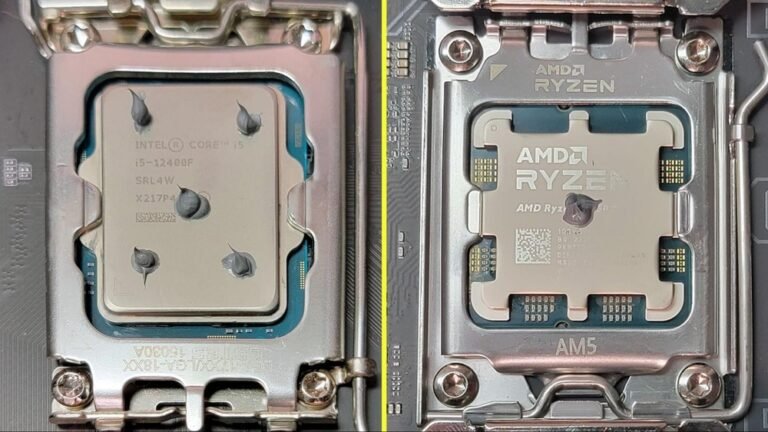
The CPU handles most OBS tasks. Older CPUs may struggle with high-quality streams. Check your CPU usage while using OBS. If it stays near 100%, a better CPU can help. Choose a processor with more cores or higher speed. This change lowers CPU strain and smooths your stream.
Update Graphics Drivers
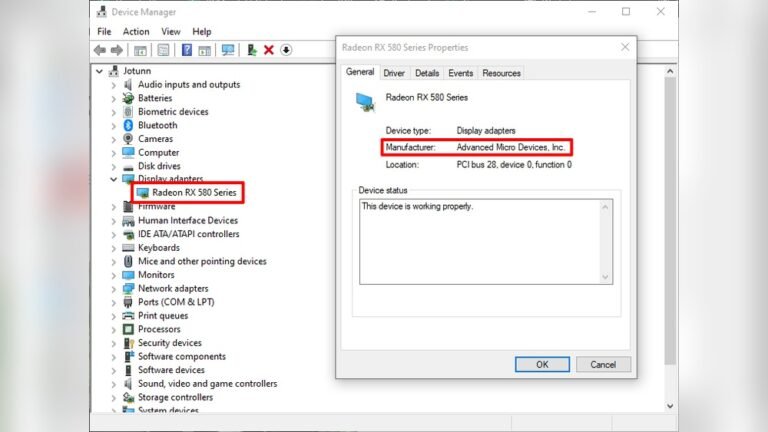
Graphics drivers control your video card. Outdated drivers can cause glitches and slow processing. Visit your graphics card maker’s website for the latest drivers. Install updates regularly for best results. Updated drivers improve video rendering and reduce CPU work.
Use Hardware Acceleration
Hardware acceleration lets your GPU do some work instead of the CPU. Enable this feature in OBS settings under Output. It shifts video encoding to the graphics card. This move frees up CPU power for other tasks. Hardware acceleration improves stream quality and lowers CPU use.
Optimize System Performance
Optimizing your system performance is key to reducing CPU use by OBS. A smooth system helps OBS run better. It stops your computer from slowing down during recording or streaming. Small changes can make a big difference in performance.
Focus on freeing up resources and improving cooling. These steps help your computer handle OBS more efficiently. Let’s explore simple ways to optimize your system.
Close Background Applications
Background apps use CPU power even if you don’t see them. Close programs you don’t need before starting OBS. Check your task manager for apps running in the background. This frees up CPU for OBS to work better. Less competition means smoother recording and streaming.
Adjust Power Settings
Your power plan affects CPU speed and performance. Set your computer to High Performance mode. This keeps the CPU running at full speed. Avoid power saver or balanced modes during OBS use. High Performance mode reduces lag and CPU throttling. It helps OBS use the CPU more efficiently.
Increase System Cooling
Heat slows down your CPU. Good cooling lets your CPU run at top speed. Clean your computer fans and vents regularly. Use a cooling pad for laptops. Ensure your PC has enough airflow around it. Cooler CPUs maintain better performance during long OBS sessions.
Use Performance Monitoring Tools
Using performance monitoring tools helps control how much CPU OBS uses. These tools show real-time data about your computer’s workload. This data helps find the main causes of high CPU use. Then, you can adjust settings to make OBS run smoother. Monitoring tools are easy to use and give clear information.
Track Cpu Usage In Obs
OBS has a built-in tool to track CPU use. It shows how much CPU OBS uses during streaming or recording. To see it, open OBS and look at the bottom right corner. The CPU usage percentage updates live. Watching this helps you know when OBS uses too much CPU. If the percentage is high, try lowering video quality or frame rate. This reduces CPU load and prevents lag.
Use Third-party Monitoring Apps
Third-party apps give more detailed CPU information than OBS. Apps like Task Manager or HWMonitor show total CPU use. They also display data for each core and process. These tools help find other programs using CPU alongside OBS. Closing unnecessary apps frees CPU power for OBS. Some apps even give alerts when CPU use is too high. Use these alerts to act quickly and keep streaming smooth.
Apply Advanced Tweaks
To reduce OBS CPU usage, applying advanced tweaks helps a lot. These settings let OBS run smoother and use less power from your computer. Small changes here can make a big difference during streaming or recording.
These tweaks focus on how your system and OBS work together. They help balance the load and keep your CPU from getting overwhelmed. Try these methods to keep your computer cool and your streams steady.
Set Process Priority
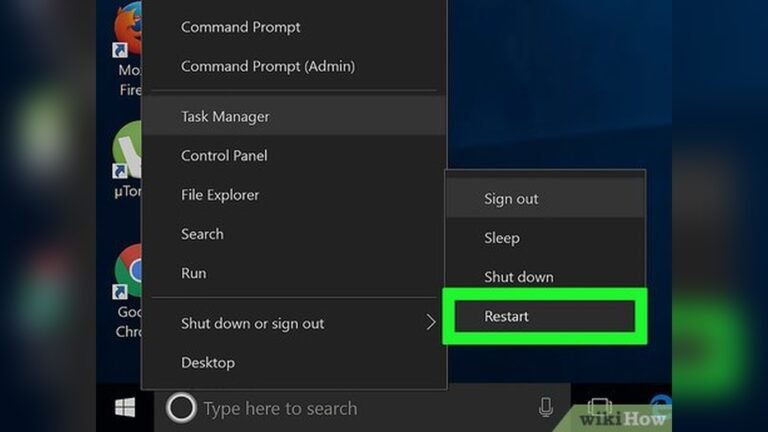
Change OBS process priority in Task Manager. Set it to “Above Normal” or “High.” This tells your PC to focus more on OBS tasks. It can reduce lag and improve performance. Be careful not to set it to “Realtime.” It may cause other apps to freeze.
Use Game Mode On Windows
Turn on Game Mode in Windows settings. It helps your PC focus on running OBS and games smoothly. Game Mode reduces background activity and frees up CPU power. This creates a better streaming experience with fewer slowdowns.
Enable Multi-threaded Optimizations
Enable multi-threaded optimizations in OBS settings. This allows OBS to use multiple CPU cores at once. It spreads the workload evenly and lowers the chance of CPU overload. Multi-threading boosts performance, especially on modern processors.

Credit: www.youtube.com
Frequently Asked Questions
How Can I Reduce Obs Cpu Usage Effectively?
Lower OBS output resolution and frame rate to reduce CPU load. Use hardware encoding like NVENC or AMD VCE instead of x264. Close unnecessary background apps and update OBS to the latest version for better performance.
What Settings In Obs Help Save Cpu Power?
Use hardware-accelerated encoding, reduce video bitrate, and limit frame rate. Disable preview when streaming and set lower canvas resolution. Adjust process priority in Task Manager to optimize CPU usage.
Why Is Obs Using Too Much Cpu During Streaming?
High resolution and frame rates increase CPU demand. Using software encoding (x264) can overload the processor. Running multiple apps simultaneously also spikes CPU usage. Optimize settings and close unused programs for smoother streaming.
Does Upgrading Hardware Reduce Obs Cpu Usage?
Yes, upgrading to a better CPU with more cores improves encoding efficiency. Adding a dedicated GPU enables hardware encoding, offloading CPU work. More RAM helps but CPU and GPU upgrades have the biggest impact on OBS performance.
Conclusion
Reducing OBS CPU use improves your computer’s speed and performance. Adjusting settings and closing extra programs helps a lot. Use lower resolution or frame rates to save power. Choose efficient encoders for smoother streaming or recording. Keep your software updated for best results.
Small changes can make a big difference. Try these tips to enjoy better streaming without lag. Keep your system cool and clean for steady performance. Stay patient and test settings until it feels right. Your computer will thank you with less stress and more power.