How to Increase Cpu Memory: Ultimate Tips for Faster Performance
Are you frustrated by your computer running slow or freezing at the worst moments? You might be wondering how to increase your CPU memory to boost your system’s speed and performance.
The good news is, improving your computer’s memory isn’t as complicated as it sounds. You’ll discover simple, effective ways to enhance your CPU memory, helping your device run smoother and faster. Keep reading, and you’ll learn practical tips that can make a real difference to your computer experience.
Credit: www.shoshitamam.com
Boosting Cpu Speed
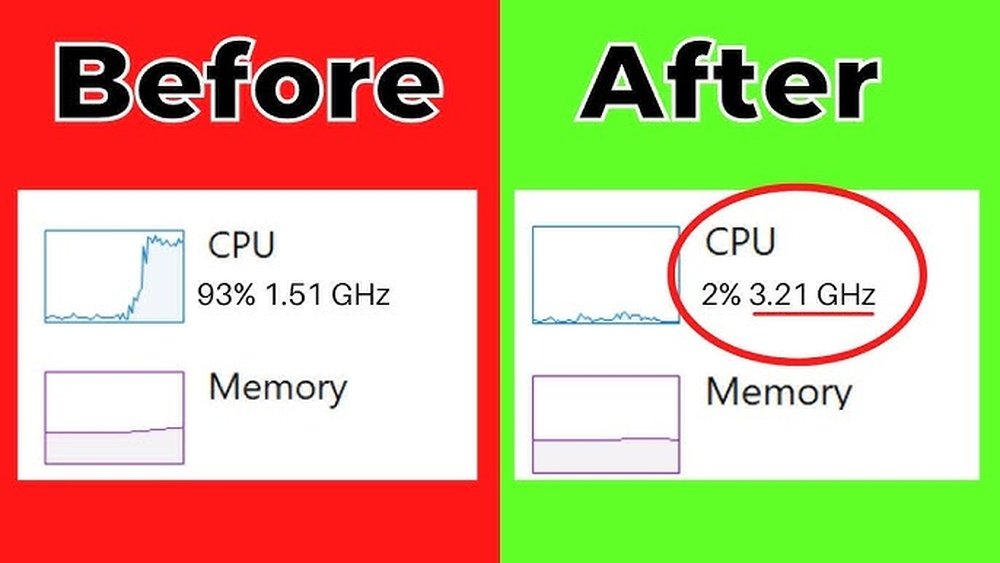
Increasing your CPU speed helps your computer run faster. This can improve how well programs work and reduce wait times. You can boost CPU speed by changing some settings and using the right tools.
Boosting CPU speed is not just for experts. Many people can do it with care and the right knowledge. It makes your computer better without buying new parts.
Overclocking Basics
Overclocking means making your CPU run faster than its normal speed. This can give your computer extra power. You do this by changing settings in the BIOS or using special software. Start with small changes. Test your computer to see if it works well after each change.
Safe Overclocking Practices
Safety is important when overclocking. Increase speed slowly to avoid damage. Watch the temperature of your CPU closely. Keep backup copies of your important files before you start. If your computer crashes, reset the settings to default. Use reliable software for overclocking.
Cooling Solutions
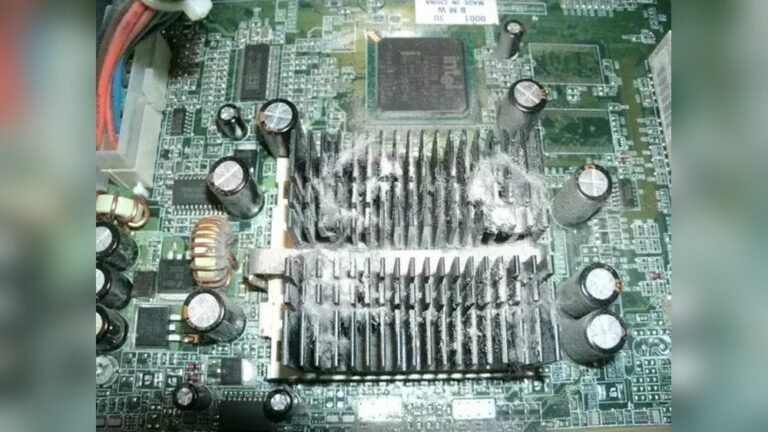
Faster CPUs create more heat. Cooling helps keep your CPU safe. Use better fans or liquid cooling systems. Make sure your computer case has good airflow. Clean dust from fans and vents regularly. Cooler CPUs last longer and work better at high speeds.
Maximizing Ram Efficiency
Maximizing RAM efficiency helps your computer run smoothly. It improves speed and reduces crashes. Understanding how to use RAM well saves money and time.
Choosing The Right Ram
Select RAM that matches your computer’s motherboard. Check the type, speed, and size supported. DDR4 RAM is common in many systems today. Buying the correct RAM ensures better performance. Avoid mixing different brands or speeds to prevent issues.
Upgrading Ram Modules
Adding more RAM modules increases memory capacity. Open your computer case carefully before installing. Insert modules firmly into the slots. Use matching pairs for dual-channel mode. This setup provides faster data transfer and improved multitasking.
Optimizing Ram Usage
Close unused programs to free RAM space. Restart your computer regularly to clear memory. Use lightweight software that requires less RAM. Adjust virtual memory settings for better balance. Keep your system updated to fix memory leaks.
Improving Virtual Memory
Virtual memory helps your computer run more programs smoothly. It acts as extra memory by using space on your hard drive. Improving virtual memory can boost your PC’s performance.
Adjusting virtual memory settings allows better use of system resources. This helps avoid slowdowns when the physical RAM is full.
Adjusting Pagefile Settings
The pagefile is a file on your hard drive used as virtual memory. You can change its size to improve performance. Set the initial and maximum size to the same value. This avoids fragmentation and speeds up access. Use at least 1.5 times your RAM size for the pagefile. For example, if you have 4GB RAM, set pagefile to 6GB.
Using Ssd For Virtual Memory
SSDs are faster than traditional hard drives. Using an SSD for virtual memory speeds up data access. This reduces lag when your system uses the pagefile. Make sure the SSD has enough free space. Avoid using virtual memory on slow drives like USB sticks.
Managing Swap Space
Swap space is the reserved area for virtual memory in some systems. It works similarly to the pagefile on Windows. You can increase swap size to improve performance. Keep swap space on a fast drive for better speed. Regularly check swap usage to ensure it meets your needs.
Credit: docs.bitnami.com
Optimizing System Software
Optimizing system software helps improve how your computer uses its CPU memory. This process makes your system run smoother and faster. It reduces wasted memory and stops slowdowns caused by unnecessary software tasks.
Small changes in software settings can free up memory for important tasks. This allows your computer to handle more programs at once without freezing or lagging.
Updating Drivers And Firmware
Device drivers and firmware control hardware parts of your computer. Outdated drivers can cause your CPU to work harder than needed. Regular updates fix bugs and improve memory use. Visit your hardware maker’s website to get the latest versions. Use update tools built into your system for easier management.
Cleaning Up Startup Programs
Startup programs run automatically when your PC turns on. Too many can slow down your system and use up CPU memory. Check which programs start automatically. Disable the ones you do not need at startup. This frees memory and speeds up boot time. Use your system settings or task manager to manage these programs.
Managing Background Processes
Background processes run behind the scenes. Some are necessary; others waste memory. Open your task manager to see running processes. End tasks that use too much memory and are not important. This action frees CPU memory for your active work. Be careful not to stop system or security processes.
Hardware Upgrades For Performance
Hardware upgrades can improve your computer’s CPU memory and overall speed. Choosing the right parts helps your system run better. These upgrades make your computer handle tasks faster and more smoothly.
Focus on components that support memory and speed. This includes storage, motherboard, and CPU. Each plays a key role in boosting performance.
Upgrading To Faster Storage
Switching to faster storage devices improves data access speed. Solid State Drives (SSD) work much quicker than traditional Hard Drives (HDD). SSDs reduce load times and increase system responsiveness.
NVMe SSDs offer even faster speeds than regular SSDs. This helps programs run faster and reduces waiting time. Faster storage supports better CPU memory usage and overall performance.
Selecting Efficient Motherboards
A good motherboard supports faster memory and CPUs. It connects all parts and controls data flow. Choose a motherboard with high RAM capacity and fast data lanes.
Modern motherboards support DDR4 or DDR5 memory. These allow higher speeds and better multitasking. Efficient motherboards also offer more slots for upgrades later.
Benefits Of Multi-core Cpus
Multi-core CPUs have more than one processing unit. They handle more tasks at the same time. This boosts performance, especially for heavy software and multitasking.
More cores improve memory management and reduce slowdowns. Software can split tasks across cores, working faster and smoother. Multi-core CPUs make your computer more powerful and efficient.
Monitoring And Maintenance
Monitoring and maintenance play a key role in improving CPU memory performance. These tasks help keep your system running smoothly and prevent slowdowns. Regular checks and care can extend your computer’s life and efficiency. Understanding how to monitor and maintain your system is essential.
Using Performance Monitoring Tools
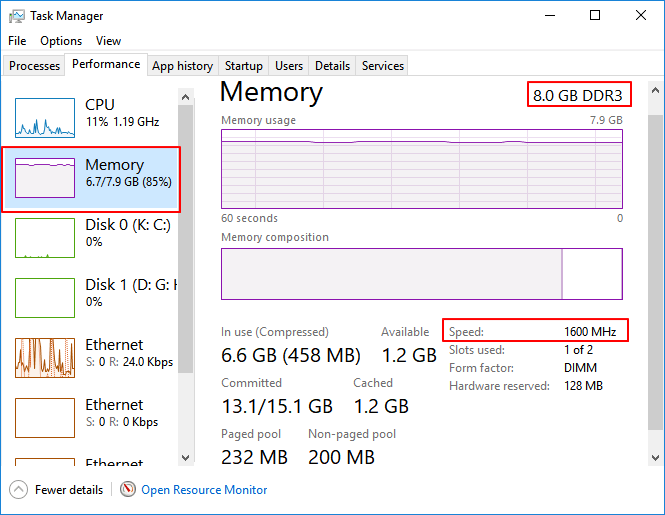
Performance tools show how your CPU and memory work. They help identify tasks using too much memory. Windows Task Manager and macOS Activity Monitor are easy options. These tools track memory usage and highlight problems fast. Monitoring lets you close heavy apps and free memory. It keeps your system responsive and smooth.
Regular System Cleaning
Cleaning your system removes junk files and unused programs. These take up memory and slow down your CPU. Use built-in cleaning tools or trusted software to clear clutter. Delete temporary files and uninstall apps you don’t need. Regular cleaning frees up space and improves memory speed. It helps your system run better every day.
Preventing Overheating
Heat harms your CPU and reduces memory efficiency. Overheating causes crashes and slows down your computer. Keep your system cool by cleaning fans and vents. Use a cooling pad for laptops to improve airflow. Avoid placing your computer on soft surfaces that block vents. Proper cooling keeps your CPU stable and memory fast.

Credit: vogueceramics.co.uk
Frequently Asked Questions
What Is Cpu Memory And Why Increase It?
CPU memory refers to the cache and RAM that supports processor tasks. Increasing it boosts speed and multitasking efficiency, improving overall system performance.
How Can I Increase Cpu Memory On My Pc?
You can increase CPU memory by upgrading your RAM or optimizing virtual memory settings. This helps the CPU handle more processes smoothly and speeds up computing tasks.
Does Increasing Cpu Memory Improve Gaming Performance?
Yes, increasing CPU memory can enhance gaming by reducing lag and loading times. It allows games to run more smoothly and handle complex graphics better.
Can Software Changes Increase Cpu Memory Effectively?
Yes, adjusting virtual memory settings and closing unnecessary apps can optimize CPU memory usage. This provides better resource allocation without hardware upgrades.
Conclusion
Increasing CPU memory helps your computer run faster and smoother. Start by checking your current memory and usage. Adding more RAM can improve performance for many tasks. Close unused programs to free up memory space. Keep your software updated to avoid memory issues.
Regularly clean your system to maintain speed. Small steps make a big difference over time. Better memory means less waiting and fewer crashes. Try these tips to keep your computer healthy and quick. Your device will thank you with faster work and play.