How to Test Gpu Health: Easy Steps to Ensure Peak Performance
Is your GPU running smoothly, or is it hiding problems that could slow down your computer? Knowing how to test GPU health can save you from unexpected crashes, poor gaming performance, and costly repairs.
You’ll discover simple, effective ways to check your GPU’s condition. By the end, you’ll feel confident spotting issues early and keeping your graphics card in top shape. Ready to protect your investment and boost your PC’s performance? Let’s dive in.
Credit: www.guidingtech.com
Signs Of Gpu Problems
Knowing the signs of GPU problems helps keep your computer running smoothly. GPUs can show different issues that affect your experience. Spotting these signs early can save you from bigger troubles. Here are common symptoms to watch for.
Visual Artifacts And Glitches
Visual artifacts appear as strange lines, dots, or colors on your screen. These glitches may flicker or stay fixed. Games and videos often show these errors first. They mean your GPU might be failing or overheating. Clean your graphics card and check the drivers.
Frequent Crashes And Freezes
Your computer crashes or freezes during normal use or gaming. Sudden shutdowns or restarts happen without warning. These crashes often point to GPU hardware or driver problems. Run stress tests to see if the GPU causes these issues. Updating or reinstalling drivers can help.
Overheating Symptoms
Overheating causes your GPU to work less efficiently. You may hear loud fan noise or feel heat from the case. Performance drops, and the system may shut down to cool off. Use software tools to monitor GPU temperature. Cleaning dust and improving airflow reduces overheating risks.
Preparing For Gpu Testing
Preparing for GPU testing is a crucial step before checking its health. It helps get accurate results and avoids damage to the hardware. Taking time to prepare ensures the test runs smoothly and safely. Follow these simple steps to get ready for GPU testing.
Gathering Required Tools
First, gather all tools needed for the test. Download GPU monitoring software like GPU-Z or MSI Afterburner. Have stress test tools like FurMark or 3DMark ready. A good power supply and a stable PC setup are also necessary. Keep a notebook or app handy to record test results.
Updating Drivers
Check if your GPU drivers are up to date. Visit the official website of your GPU manufacturer. Download and install the latest drivers for your graphics card. Updated drivers improve performance and fix bugs. They ensure the GPU runs smoothly during testing.
Ensuring Proper Cooling
Make sure your PC has good cooling before testing. Clean dust from fans and heatsinks. Check if all fans work properly. Better airflow prevents overheating during stress tests. Overheating can cause inaccurate results or damage the GPU.
Basic Gpu Health Checks
Basic GPU health checks help keep your graphics card running well. These checks are simple and do not take much time. They show if your GPU faces any issues early. Proper checks prevent bigger problems and improve performance.
Monitoring Temperature Levels
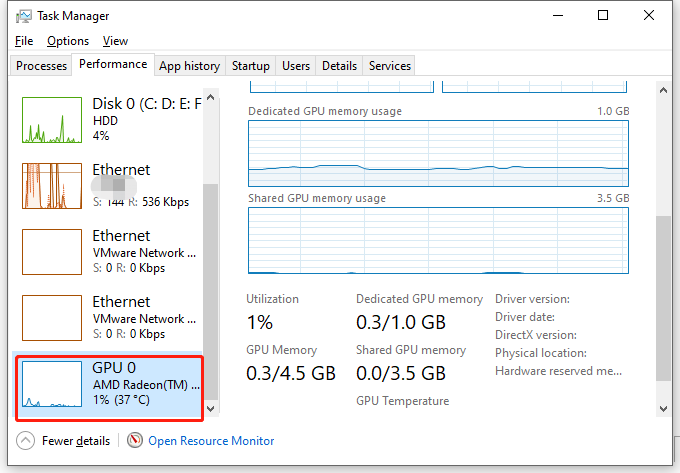
Temperature is a key sign of GPU health. High heat can damage your card. Use software tools like MSI Afterburner or HWMonitor to track temperatures. Normal idle temperatures stay below 40°C. Under heavy use, temperatures should not exceed 85°C. If it gets hotter, your GPU may need better cooling.
Checking Fan Speed
Fans keep your GPU cool by pushing air. Check fan speeds with the same tools used for temperature monitoring. Fan speed should increase when the GPU heats up. If the fan does not spin or spins slowly, it might be dirty or broken. Clean or replace the fan to avoid overheating.
Assessing Power Consumption
Power usage affects GPU health and efficiency. Use software like GPU-Z or your system’s hardware monitor to check power draw. Sudden spikes or very high power use can mean a problem. Ensure your power supply unit (PSU) meets the GPU’s needs. Stable power keeps your GPU safe and running smoothly.
Using Diagnostic Software
Using diagnostic software is a key step in testing GPU health. These tools help check how well your GPU works and catch problems early. They provide clear data on your GPU’s performance and stability.
Diagnostic software runs tests to measure speed, stress the GPU under load, and check error logs. Each test reveals different aspects of your GPU’s condition.
Benchmarking Performance
Benchmarking measures your GPU’s speed and power. It runs a set of tasks to see how fast your GPU processes graphics. The results show if your GPU matches expected performance for its model. Low scores could mean issues or aging hardware.
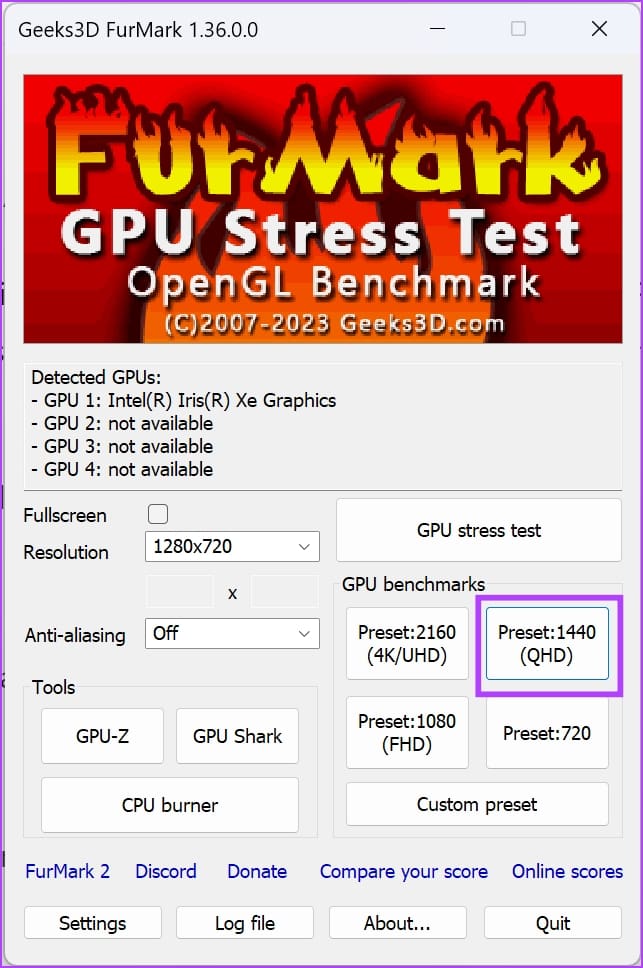
Popular benchmarking tools include 3DMark, Unigine Heaven, and FurMark. Run these tests and compare scores online. This helps spot problems early before they affect your work or gaming.
Stress Testing The Gpu
Stress tests push your GPU to its limits. This checks if the GPU stays stable under heavy load. It simulates intense graphics use, like in games or editing software. The goal is to find crashes or overheating problems.
Use stress testing tools like FurMark or MSI Kombustor. Watch your GPU temperature and performance during the test. Stresses that cause crashes or high heat mean your GPU might need repair or better cooling.
Analyzing Error Logs
Error logs record problems your GPU faces during use. Diagnostic software collects these logs for review. They show driver issues, hardware faults, or overheating alerts.
Check logs regularly to catch recurring errors. Tools like GPU-Z or your GPU’s control panel help access these logs. Early detection helps fix problems before serious damage occurs.
Advanced Testing Techniques
Advanced testing techniques help you check your GPU’s true condition. Basic tests show if it works. Advanced tests show how well it performs under stress. These methods reveal hidden problems and give detailed results. Use these tests to keep your GPU safe and fast.
Running Synthetic Benchmarks
Synthetic benchmarks create heavy loads on your GPU. They simulate intense graphics tasks using special software. This shows how your GPU handles stress and heat. Programs like 3DMark or Unigine Heaven are popular choices. They give scores to compare performance over time. Watch for crashes or artifacts during tests.
Testing With Real-world Applications
Testing with real games or software shows practical GPU health. Use applications you normally run to see real performance. Check for frame rate drops or stuttering. These issues can signal GPU problems. Running long sessions helps find overheating or instability. This method matches your GPU’s work in daily use.
Using Gpu Monitoring Tools
Monitoring tools track GPU temperature, clock speed, and usage. Tools like MSI Afterburner or GPU-Z provide live data. Watch for temperature spikes or unusual clock drops. These signs may indicate hardware or cooling issues. Monitoring helps you act before damage occurs. Use these tools during benchmarks or real use.
Interpreting Test Results
Interpreting GPU test results is key to understanding your graphics card’s condition. Test data reveals how well your GPU performs and if any issues exist. Clear interpretation helps avoid confusion and guides your next steps. Focus on what the numbers and readings mean for your GPU’s health.
Identifying Performance Bottlenecks
Check for low frame rates and stuttering during tests. These signs show your GPU may struggle with certain tasks. Look at temperature and clock speed drops too. They often point to throttling caused by heat or power limits. Pinpointing these bottlenecks helps improve performance or decide on upgrades.
Recognizing Hardware Failures
Watch for artifacts or strange visual glitches in tests. Such errors usually mean hardware damage or memory issues. Sudden crashes or driver errors also hint at failing components. Consistent test failures suggest your GPU might need professional repair or replacement soon.
Planning For Repairs Or Upgrades
Use test results to decide if repair or upgrade fits your needs. Minor issues might fix with cleaning or better cooling. Serious hardware faults often require part replacement or a new GPU. Compare your GPU’s performance with current models before upgrading. This ensures good value for your investment.
Maintaining Gpu Health
Maintaining your GPU’s health is key to keeping your computer fast and reliable. A well-maintained GPU runs cooler and lasts longer. Small steps can prevent big problems later. Follow these tips to keep your GPU in top shape.
Regular Cleaning And Dust Removal
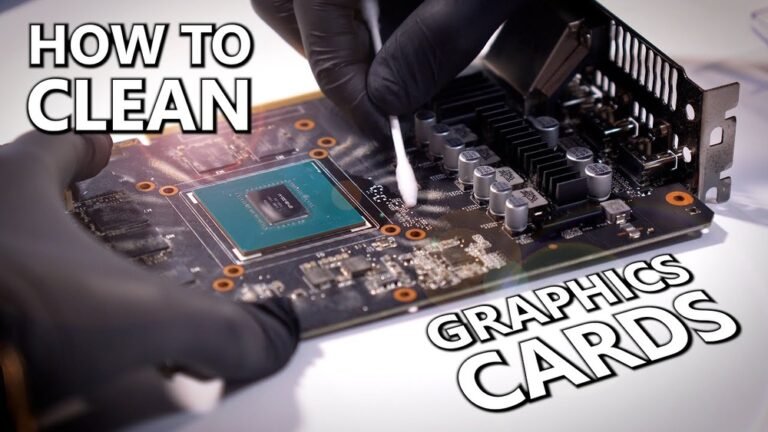
Dust builds up inside your computer and on the GPU fan. Dust blocks airflow and causes overheating. Clean your GPU regularly using compressed air. Hold the fan steady while cleaning to avoid damage. Clean your computer case too for better airflow.
Keeping Drivers Up To Date
GPU drivers control how your GPU works with your computer. Outdated drivers cause crashes and slow performance. Check for driver updates on the GPU maker’s website. Install new drivers carefully and restart your computer. Updated drivers improve stability and fix bugs.
Optimizing System Settings
Adjust settings to reduce GPU stress. Lower graphics settings in games to prevent overheating. Close unnecessary programs running in the background. Use power-saving modes when not gaming. Monitor GPU temperature using software tools. Proper settings help your GPU run smoothly and last longer.
Credit: www.minitool.com

Credit: softwareg.com.au
Frequently Asked Questions
How Do I Check Gpu Temperature?
Use software like MSI Afterburner or HWMonitor to track GPU temperature. Keep it below 85°C for safe operation. High temps may indicate cooling issues or dust buildup.
What Software Tests Gpu Health Effectively?
Popular tools include FurMark, GPU-Z, and Heaven Benchmark. They stress test and monitor GPU performance, helping identify stability or overheating problems.
How Often Should I Test My Gpu Health?
Test your GPU every few months or when you notice performance drops. Regular checks prevent hardware failure and ensure smooth gaming or work.
Can Gpu Driver Updates Affect Health Tests?
Yes, outdated drivers can cause errors and inaccurate test results. Always update to the latest drivers before running health tests for best accuracy.
Conclusion
Testing your GPU health keeps your system running smooth. Regular checks help spot problems early. Use simple tools to measure performance and temperature. Watch for unusual noises or crashes during heavy use. Good care extends your GPU’s life and saves money.
Stay alert to signs of wear and tear. Keep your device clean and updated. A healthy GPU means better graphics and gaming experience. Take small steps to protect your hardware today.