

Have you ever accidentally rotated your CPU screen and didn’t know how to fix it? Or maybe you want to switch your screen orientation to better suit your work or gaming setup.
Whatever your reason, knowing how to rotate your CPU screen can save you time and frustration. In this guide, you’ll learn simple, step-by-step methods to quickly change your screen’s direction. By the end, you’ll feel confident adjusting your display anytime you want.
Keep reading to discover easy tricks that anyone can follow!

Credit: www.wikihow.com
Reasons To Rotate Your Screen
Rotating your CPU screen can offer several benefits. It changes how you view your content. This simple adjustment helps with work and comfort. Here are some key reasons to rotate your screen.
Improving Productivity
Rotating your screen can help you see more content at once. Vertical screens are great for reading long documents or coding. It reduces the need to scroll down often. This saves time and keeps your focus. Some users find it easier to compare data side by side. It also helps with multitasking and managing multiple windows.
Adapting To Different Setups
Screen rotation helps fit different desk setups. Some monitors can be used in portrait or landscape mode. Portrait mode suits narrow spaces or tight desks. It allows better use of wall-mounted or adjustable arms. Different tasks may require different screen orientations. Switching the screen angle adapts to your current need.
Troubleshooting Display Issues
Screen rotation can fix some display problems. Sometimes the screen shows upside down or sideways. Rotating the screen back can solve this quickly. It helps when the display settings get changed by mistake. Also, it can assist in testing your monitor or graphics card. Rotation is a handy tool for quick screen fixes.
Keyboard Shortcuts For Screen Rotation
Keyboard shortcuts make screen rotation fast and simple. You do not need to open settings or control panels. Just press a few keys, and your screen flips in the direction you want. This helps when you need to switch between portrait and landscape views quickly.
These shortcuts vary by operating system. Each system uses different keys. Knowing the right keys saves time and effort. Let’s explore the most common shortcuts for Windows, Mac, and Linux.
Windows Shortcut Keys
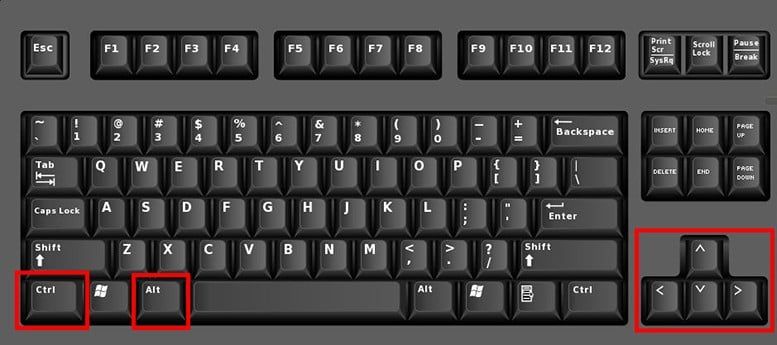
Windows users can rotate the screen using key combinations. Press Ctrl + Alt + Arrow key. The arrow keys point in the direction the screen will rotate.
- Ctrl + Alt + Up Arrow: Rotate to normal landscape mode.
- Ctrl + Alt + Down Arrow: Rotate upside down.
- Ctrl + Alt + Left Arrow: Rotate to portrait mode, left side down.
- Ctrl + Alt + Right Arrow: Rotate to portrait mode, right side down.
This shortcut works on most Windows PCs. Some laptops may need the display driver enabled.
Mac Shortcut Options
Mac does not have a universal shortcut for screen rotation. Some Mac models allow rotation through a special key combination.
Hold Command + Option and click Displays in System Preferences. The rotation options appear if supported.
Another way is using the System Preferences > Displays menu to rotate manually. Keyboard shortcuts for rotation are not common on Macs.
Linux Shortcut Variations
Linux users depend on the desktop environment for shortcuts. Common environments like GNOME or KDE have different keys.
In many setups, press Ctrl + Alt + Arrow key to rotate the screen. This works similar to Windows.
Other Linux systems require custom shortcuts or terminal commands to rotate the screen.
Rotate Screen Via Display Settings
Rotating your screen can help with reading, working, or viewing content better. Most operating systems let you change the screen angle easily. This guide covers how to rotate your screen using display settings on popular systems.
Windows Display Settings
Right-click on your desktop and select “Display settings.” Scroll down to find the “Display orientation” drop-down menu. Choose between Landscape, Portrait, Landscape (flipped), or Portrait (flipped). Click “Apply” to see the change. Confirm the rotation if it looks good. This method works on Windows 10 and 11.
Mac Display Preferences
Open “System Preferences” from the Apple menu. Click “Displays” and then select the “Display” tab. Hold the Option key and click on the “Rotation” menu. Pick the angle you want: 90, 180, or 270 degrees. The screen will rotate immediately. Not all Mac models support screen rotation.
Linux Display Configuration
Access your system settings and open “Displays” or “Screen Display.” Look for the rotation option, sometimes under “Orientation.” Choose the desired rotation: normal, left, right, or inverted. Apply the changes to rotate your screen. This process may vary slightly depending on your Linux version and desktop environment.
Using Graphics Control Panels
Using graphics control panels is a simple way to rotate your CPU screen. These panels are built into your computer’s graphics card software. They allow you to change screen orientation without needing extra tools.
Each graphics card brand has its own control panel. These panels offer easy options to rotate the screen. You can switch between landscape and portrait modes with just a few clicks.
Intel Graphics Settings
Intel Graphics Settings is common on many PCs. Open it by right-clicking the desktop and selecting the option. Find the “Display” or “Screen Rotation” section. Choose the angle you want: 0°, 90°, 180°, or 270°. Click “Apply” to save changes.
Nvidia Control Panel
NVIDIA Control Panel works with NVIDIA graphics cards. Right-click the desktop and select it from the menu. Go to “Display” and then “Rotate display.” Pick your preferred rotation: landscape, portrait, flipped landscape, or flipped portrait. Press “Apply” to update your screen.
Amd Radeon Settings
AMD Radeon Settings is for AMD graphics users. Right-click on the desktop and open it. Navigate to the “Display” tab. Look for screen rotation options. Select the desired angle and apply the change. Your screen will rotate immediately.
Fixing Common Rotation Issues
Fixing common rotation issues is key to using your CPU screen properly. Problems can stop the screen from rotating as needed. This section covers simple fixes to get your screen rotation working again.
Screen Orientation Not Changing
Sometimes the screen does not change when you try to rotate it. Check if the rotation lock is on. Turn it off in the settings to allow rotation. Also, try using keyboard shortcuts like Ctrl + Alt + Arrow keys. This often forces the screen to rotate.
Display Resolution Problems
Rotation can cause display resolution to change or look strange. Reset the resolution to the recommended setting in display options. Wrong resolution can make the screen look stretched or blurry after rotation. Always pick the resolution that matches your screen for best results.
Driver Update Tips
Outdated drivers can stop rotation from working. Visit the device manager and check for display adapter updates. Download the latest driver from the official website if needed. Keeping drivers updated improves performance and fixes rotation issues.
Credit: www.hellotech.com
Benefits Of Screen Rotation For Different Users
Screen rotation offers clear benefits for many types of users. It changes how content appears, fitting different tasks better. Rotating the screen can improve comfort, productivity, and the overall experience. Each user group can gain unique advantages by adjusting the display to their needs.
Gamers And Streamers
Rotating the screen helps gamers see more vertical space. It shows more of the game environment, especially in tall maps. Streamers can use rotation to fit chat and alerts better. It also helps reduce neck strain during long sessions. This simple change can make gaming and streaming smoother.
Graphic Designers And Photographers
Graphic designers need precise control over their work. Rotating the screen shows images in their true proportions. Photographers can view portraits in full size without scrolling. This helps spot details and errors quickly. It also makes editing easier and more comfortable.
Programmers And Writers
Programmers read long lines of code. Rotating the screen to portrait mode shows more lines at once. Writers see more text without constant scrolling. This saves time and reduces eye strain. It helps keep focus and work faster on projects.

Credit: www.youtube.com
Frequently Asked Questions
How Do I Rotate My Cpu Screen Quickly?
You can quickly rotate your CPU screen by pressing Ctrl + Alt + Arrow keys. This shortcut changes the screen orientation instantly on most Windows PCs.
Can I Rotate The Cpu Screen Using Display Settings?
Yes, go to Display Settings, find “Display orientation,” and select your desired screen rotation. This method works for Windows 10 and 11.
Why Is My Cpu Screen Upside Down?
Your screen might be upside down due to accidental key presses or incorrect display settings. Use the rotation shortcuts or reset orientation in Display Settings.
Does Rotating Cpu Screen Affect Performance?
No, rotating your CPU screen does not impact system performance. It only changes how the display content is viewed.
Conclusion
Rotating your CPU screen is easy and quick. Use keyboard shortcuts or settings to change the view. This helps when you want to see things differently. It can make work or reading more comfortable. Remember to pick the right angle for your needs.
Practice these steps to get used to them. Now, you can change your screen anytime you want. Keep your screen setup just how you like it. Simple changes can improve your daily computer use.
