

Is your GPU running hotter than it should? When your graphics card gets too warm, it can slow down your games, cause crashes, or even shorten the life of your computer.
You don’t have to accept overheating as a fact of life. You’ll discover simple and effective ways to cool your GPU, helping your system run smoother and last longer. Keep reading, and you’ll learn how to protect your investment and enjoy better performance every time you power up.
Credit: blogs.nvidia.com
Causes Of Gpu Overheating
GPU overheating can cause many problems for your computer. Understanding its causes helps keep your system safe and fast. Overheating happens when the GPU works too hard or does not get enough cooling. Several factors can raise the GPU temperature quickly. Knowing these factors helps prevent damage and slowdowns.
Common Heat Sources
The GPU creates heat while processing graphics and videos. Playing games or running heavy software makes the GPU work harder. This increases its temperature. Dust buildup inside the computer blocks airflow and traps heat. Poor case ventilation stops hot air from leaving your PC. Overclocking the GPU pushes it beyond normal limits, causing extra heat. Using a weak or failing fan reduces cooling efficiency.
Impact Of Overheating On Performance
High GPU temperatures lower its performance. The GPU slows down to cool itself, causing lag and stutter. Overheating can cause the computer to crash or shut down suddenly. Long-term heat exposure damages GPU parts, shortening its lifespan. It also leads to noisy fans working at full speed. Keeping the GPU cool maintains smooth operation and protects hardware.
Choosing The Right Cooling System
Choosing the right cooling system for your GPU is important for its performance and lifespan. A good cooling system keeps the GPU temperature low during heavy tasks. This prevents damage and helps the GPU run smoothly. Different cooling systems work in different ways. Understanding these options helps you pick the best fit for your needs.
Air Cooling Solutions
Air cooling is the most common way to cool a GPU. It uses fans and heat sinks to push hot air away from the GPU. This method is simple and cost-effective. It works well for most users with regular gaming or work tasks. Air coolers are easy to install and require little maintenance. They may get noisy when the GPU is under heavy load.
Liquid Cooling Options
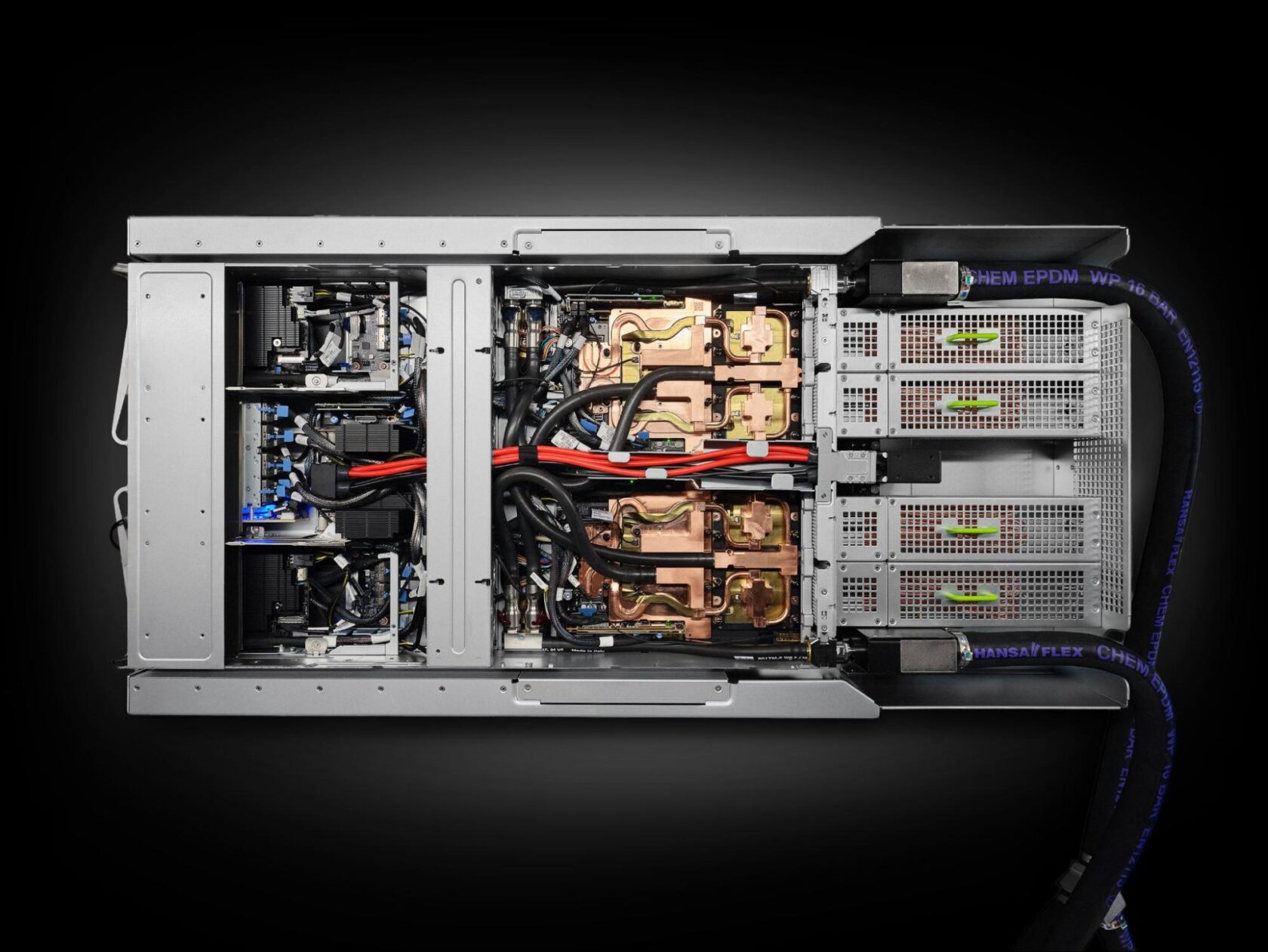
Liquid cooling uses water or coolant to move heat away from the GPU. It is more efficient than air cooling at keeping temperatures low. This type of cooling is quiet and good for high-performance GPUs. Liquid cooling can be custom-built or bought as a ready-made kit. It needs more care and installation skill than air cooling.
Hybrid Cooling Systems
Hybrid cooling combines air and liquid cooling methods. It uses liquid to cool the GPU core and air to cool other parts. This system offers strong cooling and quieter operation. Hybrid coolers suit users who want better performance without full liquid cooling. They are usually more expensive but offer good balance in cooling power and noise.
Improving Airflow Inside The Case
Improving airflow inside the computer case helps keep your GPU cool. Good airflow moves hot air out and brings cool air in. This lowers the GPU temperature and prevents overheating. Simple changes can make a big difference in cooling performance.
Optimal Fan Placement
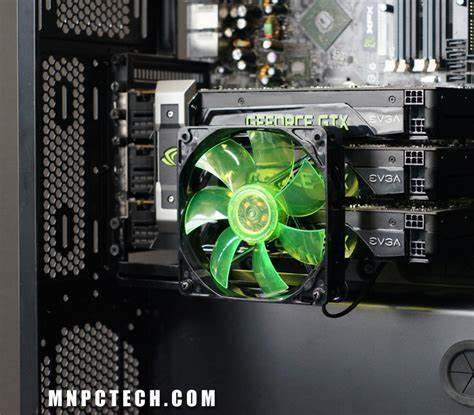
Place intake fans at the front or bottom of the case. They bring cool air inside. Exhaust fans belong at the top or back. They push hot air outside. Align fans to create a straight airflow path. This reduces hot air pockets near the GPU. Avoid blocking fans with large parts or cables.
Cable Management Tips
Keep cables tidy and out of airflow paths. Use zip ties or Velcro straps to bundle cables. Route cables behind the motherboard tray if possible. This clears space and lets air flow freely. Less clutter means better cooling and easier maintenance.
Case Selection For Better Cooling
Choose a case with good ventilation and fan support. Cases with mesh panels allow more air to pass through. Check for enough fan mounts near the GPU area. Larger cases often have better airflow than small ones. Pick a case that fits your cooling needs and hardware size.

Credit: www.youtube.com
Applying Thermal Paste Correctly
Applying thermal paste correctly is key to keeping your GPU cool. Thermal paste helps fill tiny gaps between the GPU chip and the cooler. This improves heat transfer and prevents overheating. Poor application reduces cooling efficiency and can cause high temperatures. Follow the right steps and use proper paste for the best results.
Types Of Thermal Paste
There are several types of thermal paste. The most common is silicone-based paste. It is affordable and easy to apply. Metal-based paste contains tiny metal particles. It offers better heat transfer but can be conductive. Ceramic-based paste is non-conductive and safe. It provides good performance and lasts long. Choose paste based on your needs and budget.
Step-by-step Application Guide
Start by cleaning the GPU surface with isopropyl alcohol. Remove old paste completely. Apply a small pea-sized drop of thermal paste in the center. Spread it evenly with a plastic card or let the cooler spread it. Avoid too much paste; it can reduce cooling. Attach the cooler firmly and evenly. Check for proper contact to ensure good heat transfer.
When To Reapply Thermal Paste
Reapply thermal paste every 1 to 2 years. If you remove the cooler for any reason, clean and reapply paste. High temperatures or poor cooling may signal dried-out paste. Reapplying can improve cooling performance. Watch your GPU temperature regularly to catch issues early. Proper maintenance keeps your GPU running cooler and longer.
Using Software To Monitor And Control Temperature
Using software to monitor and control your GPU temperature helps keep your computer safe. It shows real-time heat levels and lets you adjust settings to cool down the GPU. This way, you avoid damage from overheating and keep your system running smoothly.
Many tools let you watch the GPU temperature easily. Some also allow you to change fan speeds and set alerts. These features help you take quick action before your GPU gets too hot.
Popular Monitoring Tools
Many free and paid software options track GPU temperature. MSI Afterburner is popular for its simple interface and detailed info. HWMonitor shows temperatures for many parts of your PC. GPU-Z focuses on graphics card stats and temperature. These tools run in the background and give accurate data.
Adjusting Fan Speeds
Software like MSI Afterburner lets you control fan speeds manually. Increasing fan speed cools the GPU faster but may cause more noise. Some programs offer automatic fan control based on temperature. Set a curve so fans speed up as the GPU gets hotter. This keeps your GPU cooler without constant noise.
Setting Temperature Alerts
Temperature alerts warn you before the GPU overheats. Tools like HWMonitor allow you to set a max temperature limit. When the GPU reaches this limit, the software sends a notification. This gives time to close heavy apps or improve cooling. Alerts prevent damage and keep your GPU safe.
Credit: www.mnpctech.com
Overclocking With Cooling In Mind
Overclocking a GPU means making it run faster than its factory settings. This can improve gaming and creative work. But faster speeds create more heat. Managing this heat is very important. Cooling must be part of the overclocking plan. Without good cooling, the GPU can get damaged or slow down.
Balancing Performance And Heat
Overclocking boosts speed and power. The GPU uses more electricity and makes more heat. The goal is to find a balance. Push the GPU for better performance. Keep temperatures low enough for safety. Use tools to monitor temps and clock speeds. Stop if heat gets too high. Balance means good speed without stress on the GPU.
Safe Overclocking Practices
Start slow and increase speeds in small steps. Test stability and temperatures after each change. Use software made for overclocking and monitoring. Set temperature limits to avoid damage. Make sure your cooling system is working well. Fans and cooling pads help lower heat. Avoid high voltages that can harm the GPU. Be patient. Safety keeps the GPU healthy for longer.
Regular Maintenance For Optimal Cooling
Regular maintenance helps keep your GPU cool and working well. Dust and dirt build up inside your computer. This blocks airflow and makes your GPU hotter. Checking your GPU parts often stops problems early. It also improves cooling and extends your GPU’s life.
Cleaning Dust And Debris
Dust gathers on fans and heat sinks. This slows down airflow and raises temperature. Turn off and unplug your computer first. Use a soft brush or compressed air to remove dust. Clean all fan blades and vents carefully. Do this every few months to keep your GPU cool.
Checking Fan And Pump Functionality
Fans and pumps move air and liquid to cool your GPU. Listen for strange noises or weak airflow. Check if fans spin smoothly without stopping. For liquid cooling, ensure the pump runs quietly. Replace any broken or noisy parts quickly. Proper fan and pump work keeps your GPU cool and safe.
Additional Cooling Accessories
Keeping your GPU cool is crucial for better performance and longer life. Besides the built-in cooling system, extra accessories help reduce heat effectively. These tools improve airflow and lower temperatures, making your graphics card run smoother.
Aftermarket Gpu Coolers
Aftermarket GPU coolers replace or add to your original cooler. They often have bigger fans or better heat sinks. This helps move heat away faster. Some models use liquid cooling for even better results. These coolers fit many GPU models but check compatibility first. Installing one can drop temperatures by 10 to 20 degrees Celsius.
Cooling Pads And External Fans
Cooling pads and external fans offer easy GPU cooling solutions. Cooling pads sit under your computer or laptop. They push extra air towards the GPU area. External fans can be placed near your PC case. They boost airflow and reduce hot spots. These accessories are simple to use and affordable. They help keep your GPU cooler during heavy use.
Frequently Asked Questions
How Can I Lower My Gpu Temperature Effectively?
To lower GPU temperature, improve case airflow, clean dust regularly, and use quality thermal paste. Also, consider installing extra fans or a liquid cooling system for better heat dissipation.
What Are The Best Cooling Options For Gpus?
Air coolers with high-quality fans and heatsinks are common. Liquid cooling offers superior performance but is costlier. Choose based on your budget, space, and cooling needs.
Does Gpu Fan Speed Affect Cooling Performance?
Yes, higher fan speeds increase airflow and reduce GPU temperature. However, faster fans may produce more noise. Balancing speed and noise is key for effective cooling.
Can Undervolting Help Cool A Gpu?
Undervolting reduces power consumption and heat generation without affecting performance. It is a safe, effective way to keep your GPU cooler and extend its lifespan.
Conclusion
Keeping your GPU cool helps it run better and last longer. Clean fans and good airflow reduce heat effectively. Using quality thermal paste improves heat transfer from the chip. You can add extra fans or use water cooling for heavy use.
Watch your GPU temperature often to catch problems early. A cool GPU means smoother games and faster work. Take simple steps today to protect your graphics card tomorrow.
