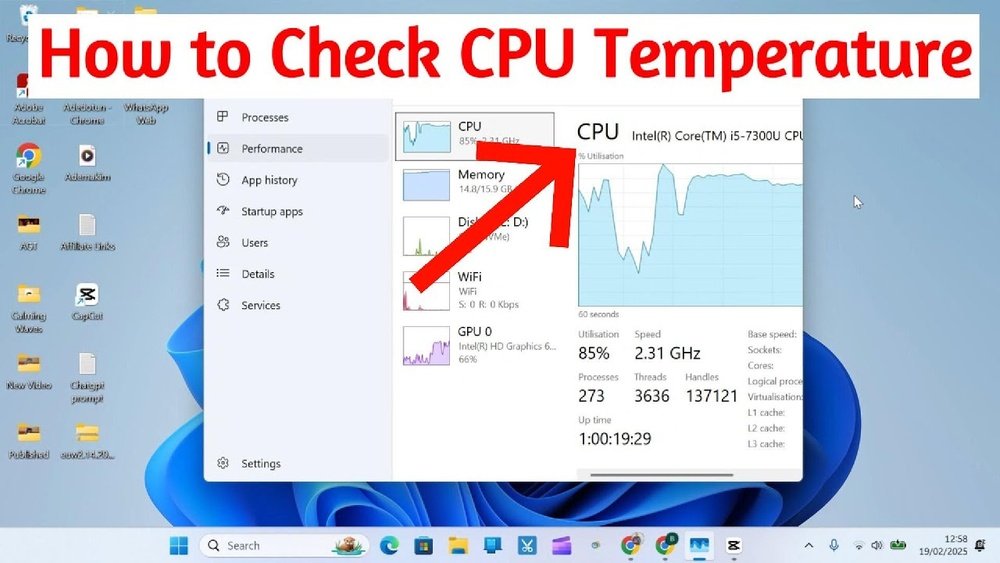
How to Monitor My Cpu Temperature: Easy Steps for Safe Performance
Are you worried your computer might be running too hot? Keeping an eye on your CPU temperature is one of the smartest ways to protect your device and boost its performance.
If your CPU gets too warm, it can slow down, crash, or even get damaged. But don’t worry—you don’t need to be a tech expert to check your CPU temperature. You’ll discover simple, effective methods to monitor your CPU’s heat.
By the end, you’ll know exactly how to keep your computer cool and running smoothly. Ready to take control of your PC’s health? Let’s dive in.
Credit: www.youtube.com
Why Monitor Cpu Temperature
Monitoring your CPU temperature is important for your computer’s health. The CPU works hard to run programs and apps. It produces heat as it works. Too much heat can cause problems. Knowing your CPU temperature helps you keep your computer safe and fast.
Risks Of Overheating
Overheating can damage your CPU permanently. High temperatures may cause your computer to shut down suddenly. This protects the CPU but can interrupt your work. Heat can also harm other parts inside your computer. Watching the temperature helps avoid these risks.
Impact On Performance
A hot CPU does not work well. It may slow down to cool itself. This makes programs run slower and causes lag. Keeping the CPU cool keeps your computer running smoothly. You get better speed and less frustration.
Extending Cpu Lifespan
Heat wears out the CPU over time. High temperatures shorten the life of your processor. Regularly checking the temperature helps prevent damage. Cooler CPUs last longer and need fewer repairs. This saves money and keeps your computer reliable.
Credit: www.avast.com
Signs Of High Cpu Temperature
High CPU temperature can cause many problems on your computer. It affects performance and may damage hardware over time. Spotting early signs helps you act quickly. You can avoid bigger issues by knowing what to watch for.
System Slowdowns
Your computer may become very slow. Programs take longer to open or run. Tasks that were easy before now lag or freeze. This happens because the CPU lowers its speed to cool down. Slowdowns are a key sign of heat problems.
Unexpected Shutdowns
The computer may turn off without warning. This protects the CPU from damage. Sudden shutdowns happen when temperature gets too high. It stops the system before parts get harmed. Frequent shutdowns need immediate attention to avoid failure.
Loud Fan Noise
Fans work harder to cool the CPU. You hear loud or constant fan noise. This noise means the CPU is very hot. Fans spin faster to reduce the temperature. Loud fan noise is a clear warning sign.
Tools To Check Cpu Temperature
Monitoring your CPU temperature helps keep your computer safe and fast. Many tools exist to check this important number. Some are built into your system. Others are software programs you can download. Hardware devices also provide real-time temperature data. Each option has its strengths and fits different needs. Choose the one that works best for you.
Built-in Bios Options
Your computer’s BIOS often shows CPU temperature. You can access it during startup by pressing a key like F2 or Delete. BIOS displays basic temperature data without extra software. This method is simple and reliable. However, it only shows temperature when the PC boots up. It does not provide live updates while using the computer.
Third-party Software
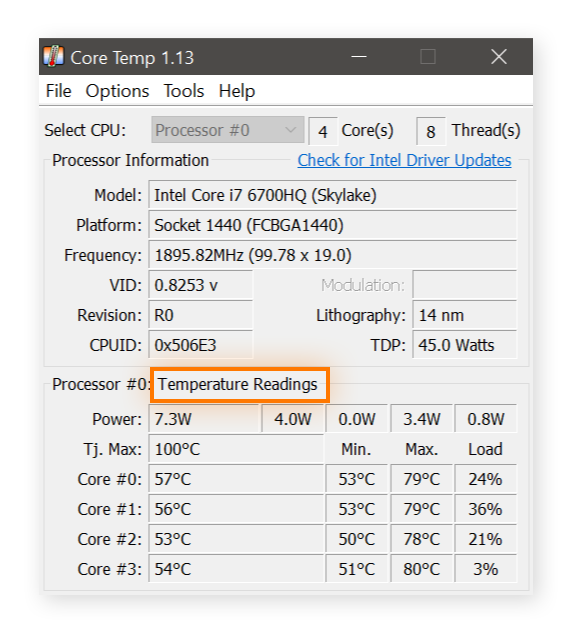
Many free and paid programs check CPU temperature inside your operating system. Popular tools include HWMonitor, Core Temp, and Speccy. These apps show real-time temperature readings and other system details. They can alert you if the CPU gets too hot. Software tools are easy to use and offer detailed information. They work well for daily monitoring and troubleshooting.
Hardware Monitoring Devices
External hardware sensors can measure CPU temperature directly. These devices connect to your motherboard or sit near the CPU. They give precise readings and often include displays or apps. Hardware monitors are useful for overclocking or serious PC users. They provide constant temperature feedback without relying on software. This method is less common but highly accurate.

Credit: www.alcpu.com
Step-by-step Cpu Temperature Check
Checking your CPU temperature is important for your computer’s health. It helps avoid overheating and damage. This step-by-step guide shows how to check your CPU temperature easily.
You can check temperature in two main ways. One is by using the BIOS settings. The other is with special software that shows real-time data. You can also set alerts to warn you about high temperatures.
Accessing Bios Temperature Readings
Turn off your computer first. Turn it on and press the BIOS key quickly. The key is usually F2, DEL, or ESC. Watch the screen carefully to see which key to press.
Inside the BIOS menu, find the “Hardware Monitor” or “PC Health” section. Look for CPU temperature readings there. The temperature shows in degrees Celsius or Fahrenheit.
Note the temperature and exit BIOS by saving or discarding changes. This method shows the temperature before the system fully starts.
Using Software For Real-time Monitoring
Download a trusted CPU temperature monitor software. Install and open the program on your computer. These programs show live temperature data while you use your PC.
Look for programs like HWMonitor, Core Temp, or SpeedFan. They are easy to use and free. The software shows the temperature of each CPU core separately.
Check the temperature regularly to see if it stays safe. Safe temperatures usually stay below 80°C during heavy use.
Setting Up Alerts For High Temps
Many monitoring programs let you set alerts for high temperatures. Open your temperature software settings. Find the alert or notification section.
Set a temperature limit, such as 75°C or 80°C. The program will warn you if the CPU gets too hot. This helps you act quickly to cool your system.
You can choose sound alerts, pop-up messages, or emails. Alerts prevent damage by giving you time to fix cooling issues.
Tips To Keep Cpu Cool
Keeping your CPU cool is very important to protect your computer. High temperatures can slow down your system or cause damage. Simple steps can help you keep your CPU at a safe temperature. These tips improve cooling and help your CPU work well for a long time.
Improving Airflow
Good airflow inside your computer case moves hot air out. Use case fans to push air in and out. Place intake fans at the front and exhaust fans at the back. Avoid blocking vents with cables or other parts. A clean and open path helps cool air flow freely.
Cleaning Dust And Debris
Dust blocks air vents and fan blades. It traps heat and raises CPU temperature. Use a soft brush or compressed air to clean dust. Clean your computer every few months. Focus on fans, vents, and heat sinks for best results.
Applying Thermal Paste
Thermal paste helps heat move from the CPU to the cooler. Over time, the paste can dry out and lose its effect. Remove the old paste with alcohol and apply a new, thin layer. This improves heat transfer and lowers CPU temperature quickly.
When To Seek Professional Help
Knowing when to seek professional help for your CPU temperature issues is important. Some problems need expert tools and skills to fix. Early action can save your computer from serious damage. Watch for signs that show you need a technician’s help.
Persistent Overheating Issues
If your CPU keeps getting too hot, even after cleaning and basic fixes, it may be time to get help. Constant overheating can cause your computer to shut down or slow down. Professionals can diagnose hidden problems like thermal paste failure or faulty sensors.
Hardware Replacement Options
Some parts may wear out or get damaged over time. A technician can check if your CPU fan, heat sink, or other hardware needs replacing. Using the right parts helps keep your CPU cool and your system stable. Avoid trying complex replacements alone to prevent more damage.
Upgrading Cooling Systems
Older or low-quality cooling systems might not handle modern CPU demands. Experts can suggest better cooling solutions like liquid cooling or high-performance fans. Upgrading your cooling system improves temperature control and boosts your computer’s lifespan.
Frequently Asked Questions
How Do I Check My Cpu Temperature On Windows?
You can check CPU temperature using software like HWMonitor or Core Temp. These tools provide real-time temperature readings. Install and run the app to monitor your CPU’s heat levels easily.
What Is A Safe Cpu Temperature Range?
A safe CPU temperature typically ranges between 30°C to 70°C under normal use. Temperatures above 80°C may risk hardware damage. Always monitor to prevent overheating and maintain optimal performance.
Can High Cpu Temperature Damage My Computer?
Yes, consistently high CPU temperatures can cause hardware failure, reduced lifespan, and system crashes. Proper cooling and monitoring help avoid damage and ensure your computer runs smoothly.
Which Software Is Best For Cpu Temperature Monitoring?
Popular software includes HWMonitor, Core Temp, and SpeedFan. These apps are user-friendly, accurate, and free. Choose one to keep track of your CPU temperature efficiently.
Conclusion
Monitoring your CPU temperature helps keep your computer safe. It stops overheating and avoids damage. Use easy tools to check the temperature often. Pay attention to high numbers and cool your device if needed. Keeping an eye on the CPU keeps it running smoothly.
Stay aware, and your computer will last longer. Simple steps can save you from big problems. Your CPU’s health is important—watch it closely.