How to Turn on Gpu Hardware Acceleration: Boost Performance Fast
Are you looking to boost your computer’s speed and performance? Turning on GPU hardware acceleration can make a huge difference.
It lets your graphics card handle heavy tasks, freeing up your CPU and making everything run smoother. Whether you’re gaming, editing videos, or simply browsing, enabling this feature can give your system the power it needs. You’ll learn exactly how to turn on GPU hardware acceleration step by step.
Keep reading to unlock your computer’s full potential!

Credit: www.wikihow.com
What Is Gpu Hardware Acceleration
GPU hardware acceleration uses the graphics processing unit to help run tasks faster. It takes some work from the main processor. This allows your computer to handle graphics and other complex jobs better. Many programs and web browsers support this feature.
This process makes your system more efficient. It helps with smoother visuals and quicker responses. Many users might not realize their GPU can do more than just display images.
Benefits For Performance
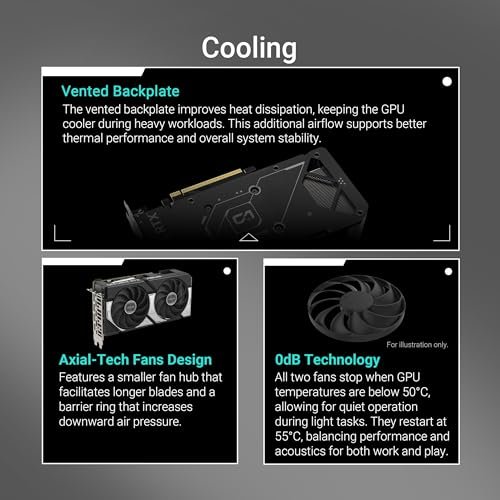
GPU acceleration improves speed for many tasks. It reduces the load on the CPU. This means your computer runs cooler and quieter. Video playback becomes smoother without lag. Games perform better with higher frame rates. Complex calculations finish faster. Overall, it gives a more responsive experience.
Common Use Cases
Many applications use GPU acceleration today. Video editing software relies on it for fast rendering. Web browsers use it to display graphics smoothly. 3D modeling programs depend on it for better visuals. Some AI and machine learning tasks use GPU power. Even everyday apps benefit from faster graphics processing.
Check Gpu Compatibility
Before turning on GPU hardware acceleration, checking GPU compatibility is crucial. This step ensures your system supports acceleration and works smoothly. Understanding compatibility avoids errors and improves performance.
Supported Graphics Cards
Not all graphics cards support hardware acceleration. Most modern GPUs from NVIDIA, AMD, and Intel work well. Older models may lack the necessary features. Check your GPU model against the official list from the software or hardware provider. This helps confirm if your card can handle acceleration tasks.
Driver Requirements
Updated drivers are essential for GPU acceleration. Outdated drivers may cause errors or poor performance. Visit the GPU manufacturer’s website to download the latest drivers. Install the correct driver version for your operating system. Proper drivers ensure your GPU runs acceleration smoothly and efficiently.
Enable Acceleration On Windows
Enabling GPU hardware acceleration on Windows helps your system run graphics-heavy tasks faster. It allows software to use your computer’s graphics card to improve performance. This feature is useful for video editing, gaming, and 3D modeling. Follow these simple steps to turn on hardware acceleration on your Windows PC.
Using Display Settings
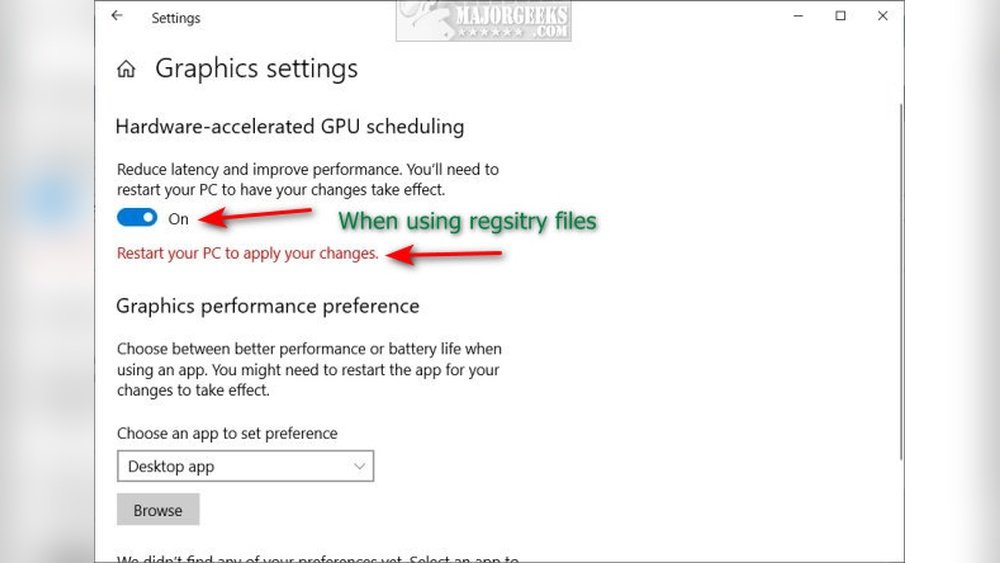
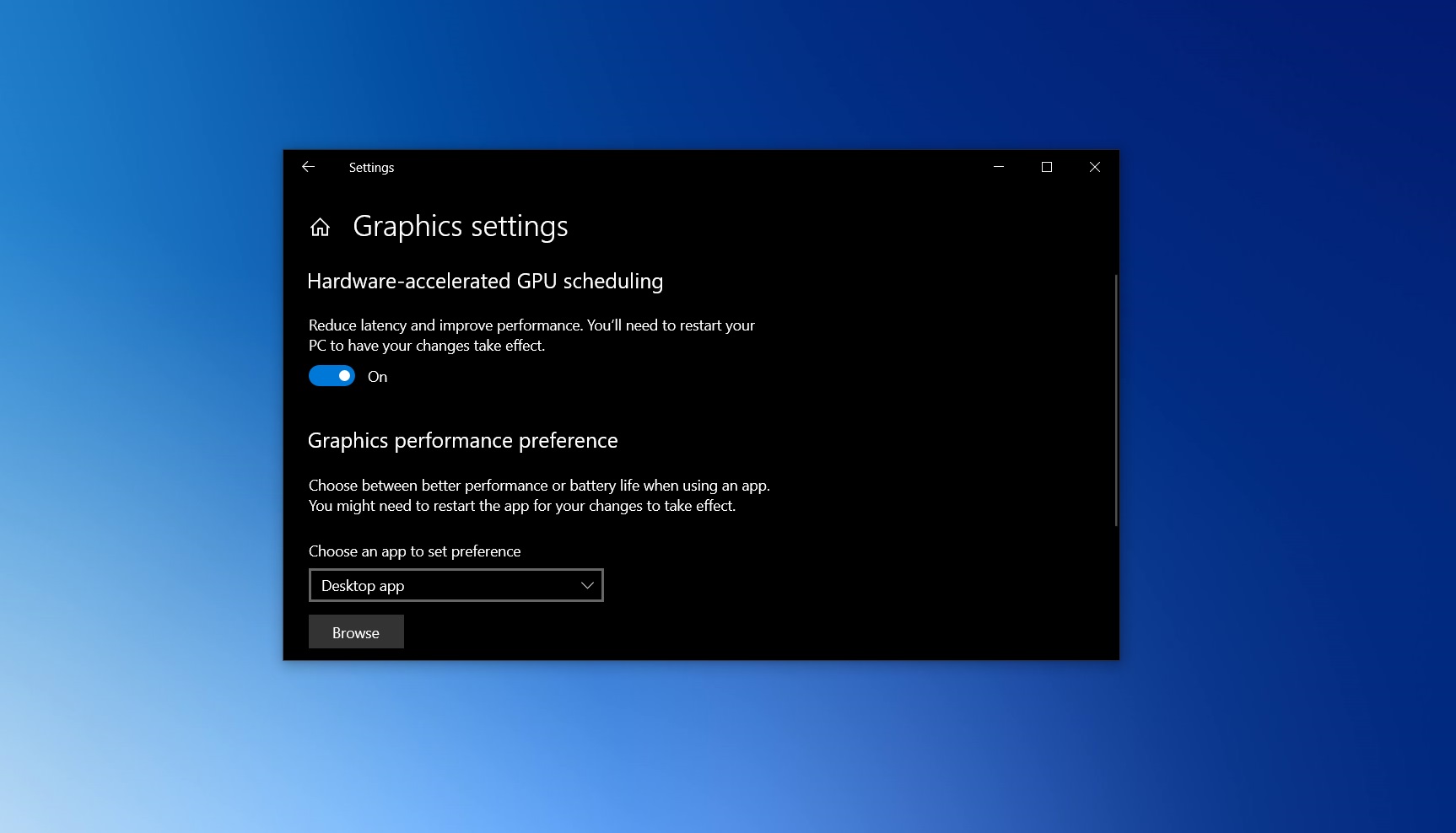
Right-click on your desktop and select “Display settings.” Scroll down and click on “Graphics settings.” Choose the app type you want to enable acceleration for. Then, click “Browse” and select the app’s executable file. Click on the app in the list, then choose “Options.” Select “High performance” to use the GPU. Click “Save” to confirm the changes.
Adjusting Graphics Settings
Open the Windows Settings by pressing Windows + I keys. Go to “System” and then “Display.” Click on “Advanced graphics settings.” You can add apps and assign them to use the GPU. Pick “High performance” to enable hardware acceleration. This ensures the app uses your GPU for better speed.
Through Device Manager
Press Windows + X and select “Device Manager.” Expand the “Display adapters” section. Right-click your graphics card and choose “Properties.” Go to the “Driver” tab and check if the driver is up to date. Update the driver if needed to ensure hardware acceleration works. Restart your computer to apply changes.
Credit: www.windowslatest.com
Activate Acceleration On Mac
Activating GPU hardware acceleration on a Mac can improve your system’s performance. It helps apps run smoother by using the graphics card. This guide shows how to enable acceleration through system settings and app-specific options.
System Preferences Setup
Open System Preferences from the Apple menu. Select “Displays” to check if your Mac supports GPU acceleration. Next, go to “Energy Saver.” Disable “Automatic graphics switching” for better GPU use. This setting forces the Mac to use the dedicated GPU.
Some Macs use integrated graphics by default. Turning off graphics switching boosts performance. It uses more power but runs apps faster.
App-specific Settings
Many apps have their own acceleration options. Open the app’s preferences or settings menu. Look for a section named “Performance” or “Graphics.”
Enable hardware acceleration if available. Restart the app after changing settings. This lets the app use the GPU for tasks like video editing or 3D rendering.
Not all apps support GPU acceleration. Check the app’s help files for details. Enabling acceleration improves speed and reduces lag in supported apps.
Configure Browser Gpu Acceleration
Configuring GPU hardware acceleration in your browser improves how it handles graphics and videos. It allows the browser to use your computer’s graphics card. This reduces the load on the CPU and makes web pages load faster. Many popular browsers have this feature turned off by default. Turning it on can enhance your browsing experience.
Here are simple steps to enable GPU acceleration in major browsers. Follow the instructions carefully for each browser.
Google Chrome
Open Chrome and click the three dots at the top right. Select “Settings” from the menu. Scroll down and click “Advanced” to see more options. Find the “System” section. Look for “Use hardware acceleration when available” and toggle it on. Restart Chrome to apply the changes.
Mozilla Firefox
Start Firefox and click the three horizontal lines in the top right corner. Choose “Settings” from the dropdown. Scroll to the “Performance” section. Uncheck “Use recommended performance settings.” Then check “Use hardware acceleration when available.” Restart Firefox to activate the setting.
Microsoft Edge
Launch Edge and click the three dots in the top right corner. Select “Settings” from the list. Click “System and performance” on the left menu. Turn on “Use hardware acceleration when available.” Restart Edge for the changes to take effect.
Troubleshoot Common Issues
Troubleshooting is key when GPU hardware acceleration does not work as expected. Small issues can stop acceleration from running smoothly. Fixing these problems quickly helps keep your system fast and stable.
Below are common problems you might face. Each has clear steps to help you solve it. Understanding these issues saves time and frustration.
Driver Conflicts
Old or wrong drivers cause many GPU acceleration problems. Drivers control how your GPU talks to your computer. Conflicts happen if drivers are outdated or not compatible.
Check your driver version in Device Manager. Update drivers from the official GPU maker’s website. Avoid using third-party driver tools. Restart your PC after updates to apply changes.
Performance Drops
Sometimes acceleration turns on but your GPU slows down. This can happen due to background apps using GPU power. Also, overheating can reduce GPU speed.
Close unused programs and check GPU temperature with monitoring tools. Clean your PC’s vents and fans to prevent overheating. Lower graphics settings in apps to reduce load.
Compatibility Problems
Not all apps support GPU hardware acceleration. Older software or certain settings may block acceleration. This limits the benefits of your GPU.
Check software documentation to see if GPU acceleration is supported. Update apps to the latest version. Try different software if problems continue.
Optimize Gpu Settings For Best Results
Optimizing GPU settings helps improve your computer’s speed and graphics. It makes sure your GPU works at its best. This leads to smoother videos, faster programs, and better gaming. Simple changes in your settings can make a big difference.
Adjusting Power Options
Open your computer’s power settings. Choose the high-performance mode. This mode lets your GPU use more power for better results. Avoid power-saving modes as they limit GPU speed. On laptops, connect to power for full GPU power. This step helps your GPU run faster and smoother.
Using Gpu Control Panels
Most GPUs have control panels, like NVIDIA or AMD. Open the control panel from your desktop or start menu. Find the 3D settings or performance tab. Set the preferred graphics processor to the high-performance GPU. Adjust settings like texture quality and power management. These controls let you customize your GPU for your needs. Apply changes and restart your computer for best effect.

Credit: www.wikihow.com
Frequently Asked Questions
What Is Gpu Hardware Acceleration?
GPU hardware acceleration uses your graphics card to speed up processing. It enhances performance in apps, videos, and games. Enabling it offloads tasks from the CPU to the GPU, making your system faster and more efficient.
How Do I Enable Gpu Hardware Acceleration On Windows?
Go to Settings > System > Display > Graphics settings. Choose the app, then select Options and pick “High performance. ” This activates GPU hardware acceleration for that specific app, improving its speed and responsiveness.
Does Enabling Gpu Acceleration Improve Gaming Performance?
Yes, GPU acceleration boosts gaming by offloading graphics tasks. It reduces lag and enhances frame rates. This results in smoother gameplay and better visual quality, especially in graphics-intensive games.
Can Gpu Hardware Acceleration Cause Issues?
Sometimes, yes. It may cause crashes or glitches if your drivers are outdated. Always update your GPU drivers before enabling acceleration. If problems persist, disable it and check for compatibility issues.
Conclusion
Enabling GPU hardware acceleration can improve your device’s speed. It helps programs run smoother and reduces lag. The steps are simple and quick to follow. You just need to access your settings and turn it on. This small change can make a big difference in performance.
Try it out to see the improvement yourself. Keep your drivers updated for the best results. Enjoy faster graphics and smoother video playback today.